Live on macOS · Free to start

The invisible AI for
interviews & meetings

Cloak listens to your call in real time and answers instantly — completely undetectable in Zoom, Teams, and Google Meet.

Download for macOS — free
See how it works

macOS 12+   ·   Apple Silicon & Intel   ·   ~10 MB

zoom.us — Meeting in progress
Interviewer · Stripe
Speaking…
You
REC
CLOAK OVERLAY · ONLY YOU SEE THIS · INVISIBLE IN SCREEN SHARE
Interviewer

"Tell me about a time you designed a system to handle 10x traffic growth."

Cloak

At my last role, I led a horizontal sharding project that moved us from a single Postgres instance to a distributed setup — 3 key steps:

  1. Identified read vs write bottlenecks with pg_stat_statements
  2. Added read replicas + PgBouncer connection pooling
  3. Hash-sharded on user_id once reads were stable

Result: sustained 12x peak load. Happy to walk through trade-offs…

Undetectable in every platform

ZoomGoogle MeetTeamsWebexLoomQuickTime
How Cloak helps

Four ways Cloak makes
every conversation sharper

Live audio, your own keys, beautiful notes, profile context. One overlay — invisible to the call.

⚡ Real-time
01

Answers in
under 300ms

The right answer the moment you need it. Cloak listens, understands, and whispers exactly what to say.

02
02

Your keys.
Your data. Your call.

Bring your own keys for OpenAI, Anthropic, Gemini or Groq. Or go cloud-managed. Cloak works beautifully either way.

03
03

Notes that read
like a human wrote them

Structured action items, decisions, and key moments — the moment the call ends. No post-meeting cleanup.

★ Profile-aware
04

Grounded in
your real story

Resume, JD, and custom context loaded as live signals — every answer comes back rooted in your actual work, not boilerplate.

During a meeting

How Cloak helps during
a live conversation

Cloak + listens
in to your call

Picks up the whole context in real time — every line the interviewer says becomes signal for the next answer.

When you need help, Cloak + assists
you instantly

Hit ⌘ + Ctrl + Enter and Cloak whispers the answer in the moment.

Meeting notes, on autopilot

Meeting notes in 3 steps

Turn it on once — Cloak auto-records every call and writes the notes for you. No bots ever join.

Enable meeting notes
When meeting starts
Auto start recording
Show a recording prompt
Auto start recording
Auto-start Cloak overlay
Do nothing
01

Enable it once

Turn on Meeting Notes and pick Auto-start. Grant mic + system-audio once — that's the last button you press.

Cloak started recording
02

It auto-starts

The moment a Zoom, Meet, or Teams call begins, Cloak starts capturing — straight from your Mac's audio. Nothing to click.

Project Update Meeting
AI summary
Action items
Send pricing deck to Priya Confirm migration window Draft the rollback plan
03

Get your notes

When the call ends, an AI summary and to-do list are generated automatically — saved to your notes.

When a meeting starts, Cloak can…

Show a recording prompt
Cloak asks first — record with one tap, or skip the call.
Auto start recording
Records every meeting automatically, then writes the notes — the flow above.
Auto-start Cloak overlay when a call begins
Pops the live answer overlay the instant a call starts — for interviews & in-call help.
Do nothing
No automatic behaviour — start recording or the overlay yourself, whenever you want.
Answer modes

Eight modes,
one keystroke apart.

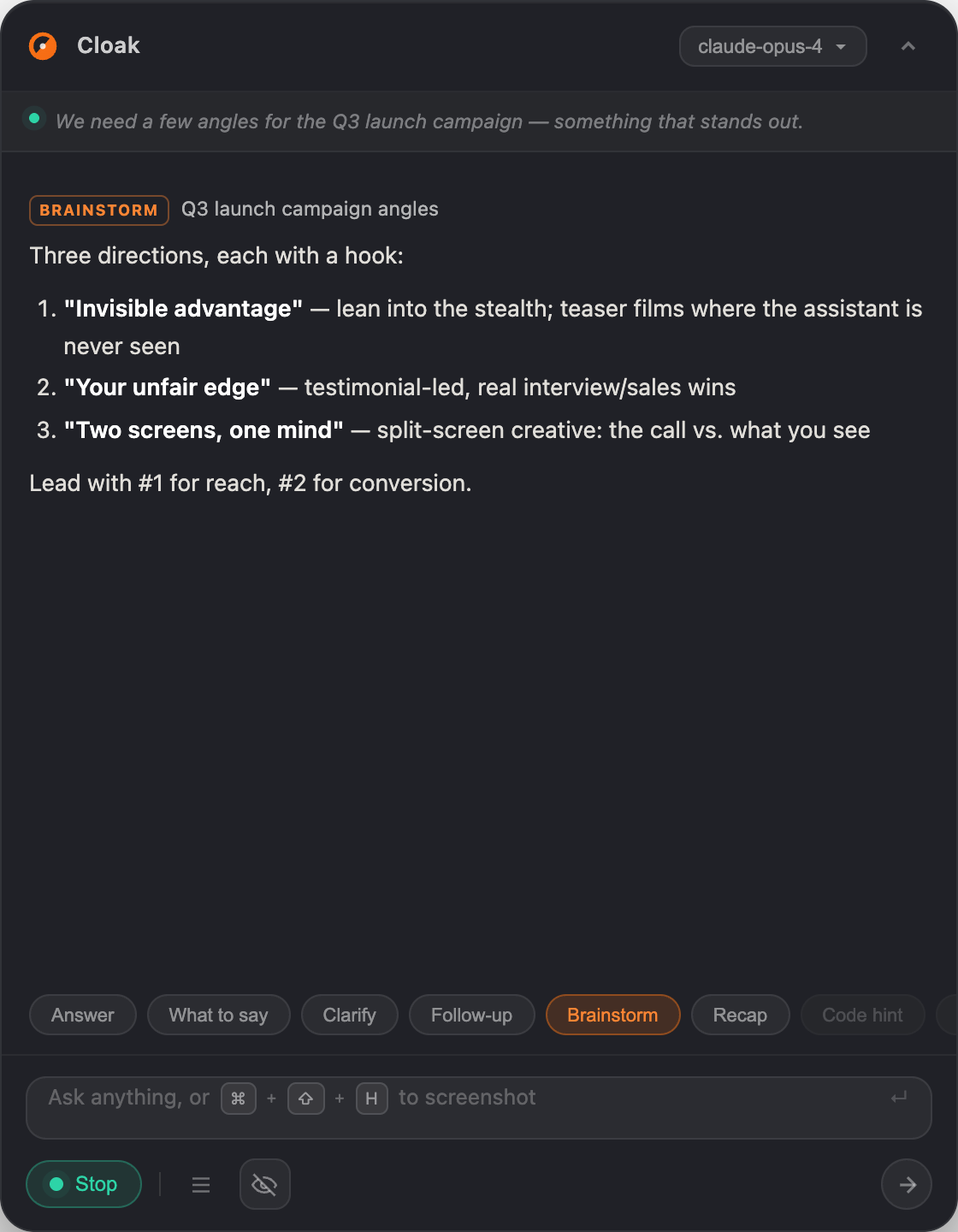
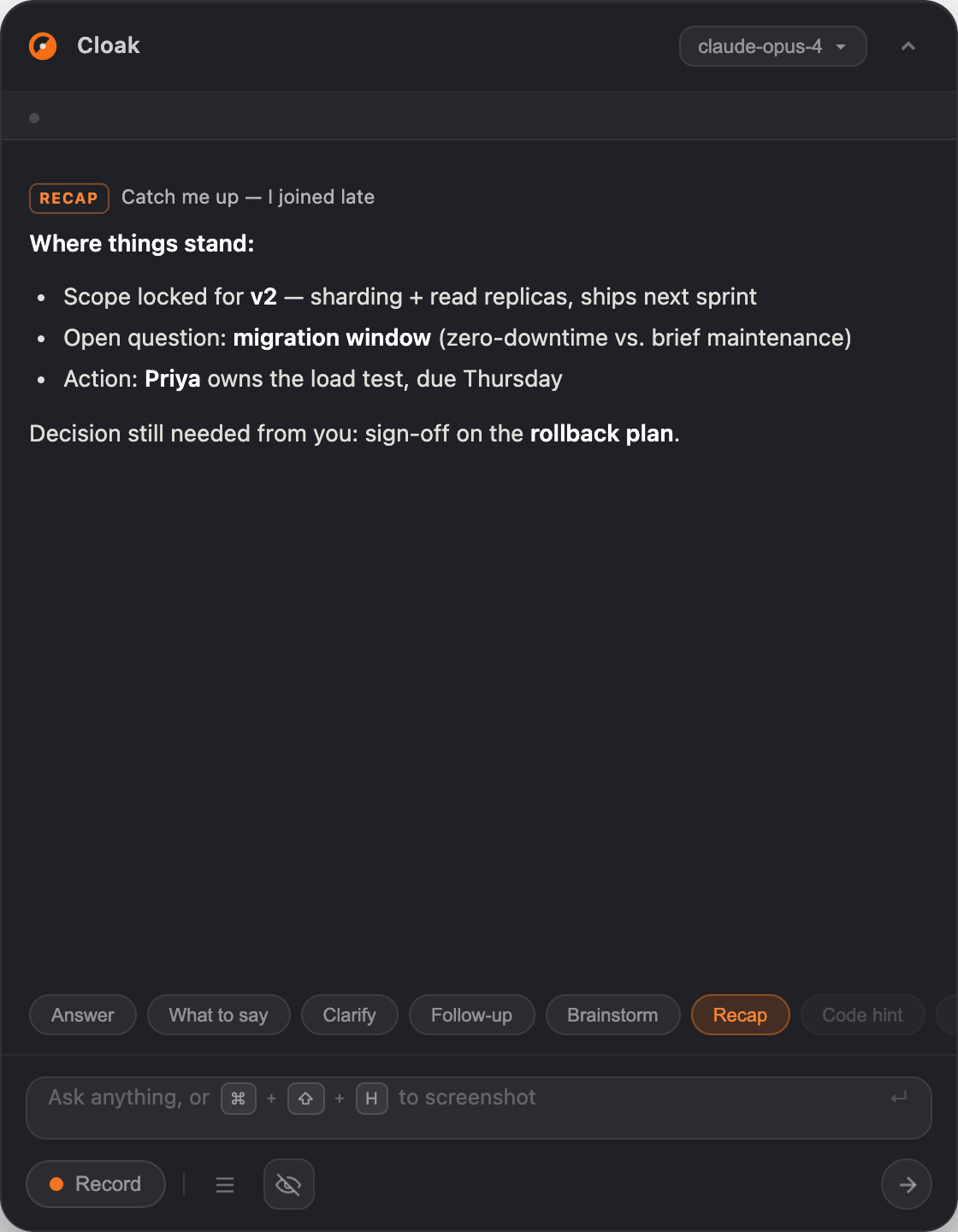
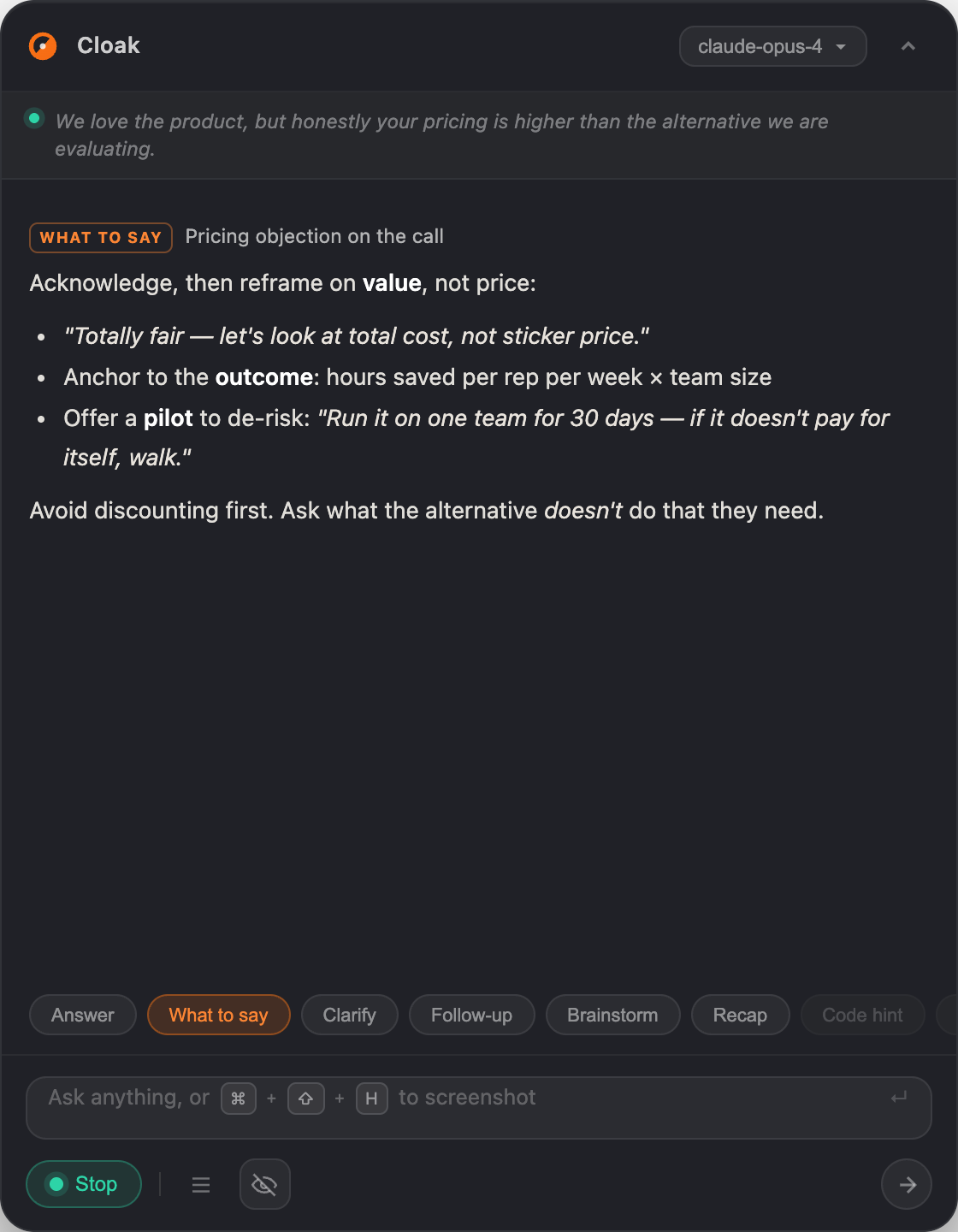
Tap a chip and Cloak reshapes how it answers the live transcript — these are real captures of the overlay, not mockups.
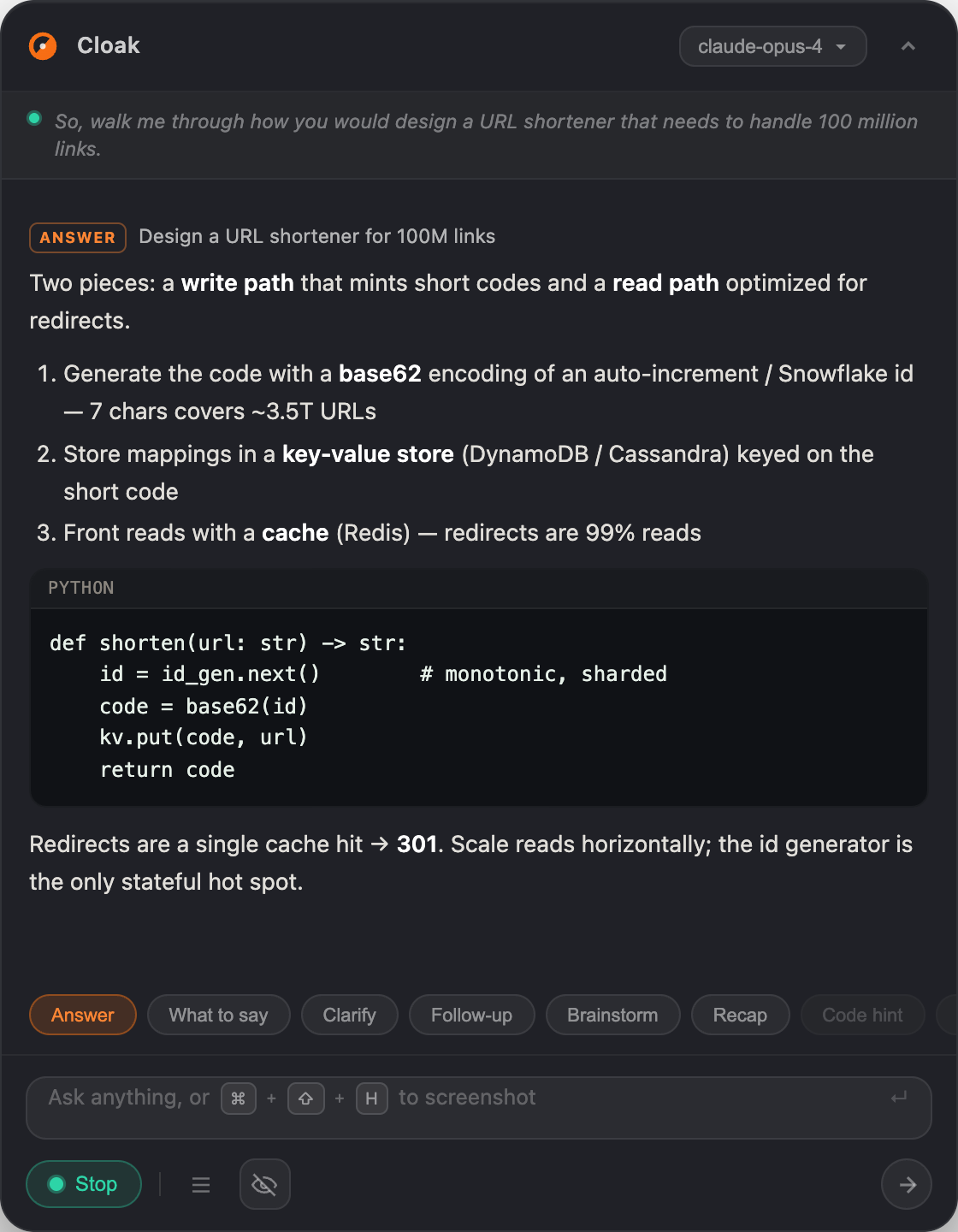
Cloak overlay in Answer mode
Answer Direct, substantive answers — with a code block when the question calls for it.
Cloak overlay in What to say mode
What to say Exact phrasing in the moment — objections, salary, the question you didn't expect.
Cloak overlay in Brainstorm mode
Brainstorm Several sharp angles, fast — for when you need ideas, not a single answer.
Cloak overlay in Recap mode
Recap Joined late? Catch up instantly — decisions made, owners, and what's next.
Beyond the conversation

Not just live answers —
the whole workflow

Research the room before you join, tune the assistant to you, and turn every meeting into notes, a mindmap, and a record you keep.

🔎 Dossier

Walk in knowing the room

Point Cloak at a company and it pulls culture, stack, comp, interview style, and recent news into your context — before you ever join the call.

02

An assistant tuned to you

Save personas with their own prompt and reference files. Flip one on and every answer speaks in that context — interview coach, sales call, standup.

03

See the whole conversation

Every session becomes an edgeless mindmap — decisions, action items, and open questions branching from the meeting, at a glance.

📆 Calendar

Your week, in the workspace

Subscribe a calendar feed and your meetings live beside your notes. No sign-in, no OAuth — local-first by default.

Invisibility

No meeting bots.
100% Undetectable.

Drag the slider — see what your call looks like with another AI notetaker, and what it looks like with Cloak.

Roy · CTO
Sarah · Eng Lead
You
— empty —
C Cloak Visible to you only

Lead with the 12x peak load result first, then walk through the sharding decision tree…

Cloak · invisible to screen share

← drag to compare →

Excluded from screen capture

macOS kCGScreenRecordingExcluded flag is on at the OS level — invisible to Zoom, Loom, QuickTime.

No bot, no participant

Cloak never joins the call. You don't need anyone's consent — nobody knows it's there.

Native overlay, ~10 MB

Pure Tauri 2 + Rust. No bundled Chromium. Boots in under 200ms.

Audio stays local in BYOK

When you bring your own keys, audio is processed on-device. Your data, your control.

Privacy

Built invisible.
By design.

Cloak leaves no trace in any screen capture, process list, or UI surface — at the OS level.

Invisible on Screen Share

macOS kCGScreenRecordingExcluded flag applied at the OS display layer — absent from Zoom, Loom, QuickTime, and every other capture tool.

Invisible in Dock

Cloak never appears in the macOS Dock, even while actively running. No icon, no badge, no trace.

Invisible in Task Manager

No entry in Activity Monitor or any process inspector. The Cloak process is not listed for any user on the system.

Invisible to Tab Switching

Cmd+Tab and Mission Control show only your real app windows. Cloak is absent from the app switcher entirely.

Cursor Undetectability

The cursor stays a default arrow when hovering over the Cloak overlay. No pointer change betrays the presence of an interactive element.

No meeting bot — never joins as a participant Audio stays local in BYOK mode macOS-native ~10 MB — no Chromium bundled Boots in under 200ms
Mon · Feb 10 Alexa, Riya, +3 more

Strategic Sales Growth and
Client Relationship Management

Summary Transcript Chats
Alexa 12:32 PM
Hi, this is Alexa from Cloak.
them 12:32 PM
Hello.
Alexa 12:32 PM
How are you today?
them 12:32 PM
Good, thanks.
Alexa 12:32 PM
I wanted to talk about your current software.
them 12:32 PM
Sure
Live transcription

Real-time
transcription

8+
STT providers

Whisper · ElevenLabs · Groq · Google Cloud · Cloak managed — swap providers without restarting.

<300ms
Response latency

Audio → transcript → AI → overlay. Among the fastest live transcription pipelines you can ship on a Mac.

95%
Transcription accuracy

Trusted across hundreds of hours of interview & meeting audio. Industry-leading STT routing.

Reviews

Used by engineers who got the offer

"

I used Cloak for three back-to-back technical interviews in one week. Landed all three offers. The NeetCode-style answer breakdowns are insane — it literally thinks through the problem with me in real time.


AK
Ananya K.
Senior SWE · FAANG offer
"

I've used bots before — they always show up in the participant list. Cloak is just gone. Screen share shows nothing. My interviewer had no idea.

MT
Marcus T.
Staff Engineer · L6 offer
"

The Career Workspace saved me 8 hours of prep. Resume + JD in, gap analysis + 40 mock questions + a negotiation script out. Then I went live during the call.

PS
Priya S.
ML Engineer · ~40% salary jump
Pricing

Start free. Scale as you need.

BYOK is free forever. Managed plans handle the infrastructure.

Bring Your Own Key

BYOK

Free forever
Download free
  • All 7 expert modes
  • System audio + mic
  • Screenshot Q&A
  • Meeting notes + history
  • Career Workspace
  • Knowledge base
  • OpenAI / Anthropic / Gemini / Groq
  • Managed STT
  • Web search (Exa)

Managed API

Standard

$4.99 / month
Get Standard
  • Everything in BYOK
  • Cloak-managed keys
  • 500 AI requests / mo
  • 250 min speech-to-text
  • 50 web searches (Exa)
  • Priority STT routing
Most popular

Managed API

Pro

$9.99 / month
Get Pro
  • Everything in Standard
  • 1,000 AI requests / mo
  • 500 min speech-to-text
  • 100 web searches (Exa)
  • Company dossier (Exa)
  • Resume + JD grounding
  • Priority support

Managed API

Max

$14.99 / month
Get Max
  • Everything in Pro
  • 2,000 AI requests / mo
  • 1,000 min speech-to-text
  • 200 web searches (Exa)
  • 10× burst capacity
  • Early feature access
Lifetime

Lifetime

Ultra

$21.99 once
Get Ultra
  • Everything in Max
  • Lifetime access — pay once
  • 3,000 AI requests / mo
  • 2,000 min speech-to-text
  • 300 web searches (Exa)
  • Priority support
🎉 Launch offer — code DEAL50 takes 50% off any managed plan, applied automatically

Free trial on managed plans — 10 AI requests · 10 min STT · No credit card required

FAQ

Frequently asked questions

Can't find the answer you're looking for? Check the GitHub docs.

Is Cloak really undetectable?

Yes. Cloak uses the macOS kCGScreenRecordingExcluded content-protection flag on an NSPanel window — an OS-level instruction that tells macOS not to include the window in any screen capture. Zoom, Teams, Google Meet, QuickTime, and all other screen-sharing tools render a blank region where Cloak was. The flag cannot be bypassed without kernel-level access the interviewer doesn't have.

Does it work with Zoom, Teams, and Google Meet?

Yes. Cloak works with any video call software because the protection flag is enforced at the OS display-compositing layer — not at the app level. Zoom can't see it any more than it can see other protected windows like DRM video.

Is my data safe?

In BYOK mode, audio is processed by your chosen provider with your own key — Cloak never proxies it. In Managed mode, audio routes through Cloak's backend; key material is Cloak-owned but never logged or shared. The Exa key for company dossier is stored locally and sent only to Exa.

Can I use my own API keys?

Yes — BYOK is a first-class tier. You can supply keys for OpenAI, Anthropic, Google, or Groq. Keys are stored in the macOS keychain via the Tauri keychain plugin, never in plaintext. You can also use a custom curl template to point Cloak at any HTTP endpoint, including self-hosted models.

What Mac hardware does it support?

Cloak ships a universal binary — native Apple Silicon (M-series) and Intel. macOS 12 Monterey or later required for the NSPanel APIs.

How is this different from Otter.ai or Fireflies?

Otter and Fireflies join your call as a visible bot, upload your audio, and produce notes after the call ends. Cloak runs locally, is invisible, and answers in real time during the call. It's a live copilot, not a post-meeting transcription service.

Is Career Workspace included for free?

Yes — Career Workspace (gap analysis, mock questions, prep dashboard, negotiation script, tailored resume) is included with BYOK using your own AI key. Company Dossier requires a free Exa API key from exa.ai.

Does Cloak work with headphones?

Yes. Cloak taps directly into system audio — not your speakers — so headphones work perfectly and have no effect on transcription quality.

Does Cloak support coding interviews?

Yes. Cloak handles technical interviews end to end — code suggestions, time and space complexity explanations, system design walkthroughs, and live debugging help, all in real time during the call.

Can I give Cloak extra context before the call?

Yes. Open the Profile section, upload your resume, paste in the job description, and add any custom notes or talking points. Cloak loads these as live context so every answer is grounded in your actual background — not generic boilerplate.

Cloak is still showing up when I share my screen — what do I do?

If you're on Zoom, update to the latest version and enable Advanced capture with window filtering in Zoom Settings → Share Screen → Advanced. This setting is required for Zoom to honour macOS window-protection flags. On other platforms the setting is applied automatically.

Can proctoring software detect Cloak?

No. Cloak uses kCGScreenRecordingExcluded — a macOS OS-level API that instructs the display compositor to exclude the window from all captures. It is absent from screen recordings, Zoom shares, and proctoring tools. The flag cannot be bypassed without kernel-level access.

Can I use Cloak during an online exam or coding assessment?

Yes. Cloak does not appear in screen shares, recordings, or the proctoring tools typically used in online exams and take-home assessments. See the Privacy section for a full breakdown of what Cloak is invisible to.

Does Cloak have keyboard shortcuts?

⌘ Ctrl Enter triggers an instant AI answer. Hover over any button in the overlay to see its shortcut. You can also configure custom hotkeys in Settings.

What is your refund policy?

30-day money-back guarantee. If you're unsatisfied for any reason, email us within 30 days of your purchase for a full refund — no questions asked. See the full refund policy.

Does Cloak work on Windows or Linux?

Cloak is currently macOS-only (macOS 12 Monterey or later, Apple Silicon and Intel). The invisibility features rely on macOS NSPanel APIs that don't have equivalents on other platforms. Windows support is on the roadmap.

Get started today

AI that helps during the call, not after.

Try Cloak free on your next interview or meeting. BYOK is free forever — no subscription, no credit card.

Download Cloak for macOS — free

macOS · Apple Silicon & Intel · 207.0 MB · v0.2.3

macOS only
NSPanel + content protection
~10 MB
No bundled Chromium (Tauri)
BYOK friendly
Your keys, your cost
Open source
github.com/solankiharsh
Discount code unlocked

You unlocked a 50% discount code. Tap it to copy and keep it somewhere safe.

Download started

How to install Cloak

macOS · Windows · Linux

  1. 1

    Extract the ZIP

    Open Cloak.zip from your Downloads folder. Double-clicking it will extract automatically.

  2. 2

    Move to Applications

    Drag Cloak.app into your /Applications folder.

  3. 3

    macOS security check

    macOS may warn that it can't verify the developer. This is normal for unsigned indie apps — it's not malware.

    "Cloak.app" can't be opened

    Apple cannot check it for malicious software.
    This item is on the disk image.

    Cancel
    OK

    If you see this, use the fix in Step 4 below — it removes the quarantine flag instantly.

  4. 4

    One-line fix (if blocked)

    Open Terminal (press ⌘ Space, type "Terminal"), paste this command and hit Return:

    Terminal — zsh
    $ xattr -cr /Applications/Cloak.app

    This removes the quarantine attribute macOS attaches to downloaded files. Cloak's source is open source — inspect it any time.

On Windows or Linux?

unsigned — same idea, one extra click

Windows

Run the installer (.exe). If SmartScreen shows "Windows protected your PC", click More info → Run anyway.

Linux

AppImage: make it executable, then run — chmod +x Cloak-*.AppImage.  .deb: sudo apt install ./cloak-*.deb

Grab the right file from the latest release.

Need help? Open an issue on GitHub →

All versions & platforms

macOS · Windows · Linux · v0.2.3

Same Cloak everywhere — the screenshot-invisible overlay, system-audio capture, live transcription and multi-provider AI. Pick the build for your machine. Every download auto-updates from GitHub Releases.

macOS

Apple Silicon · .dmg Recommended 207.0 MB Apple Silicon · .zip 262.4 MB Intel · .dmg 217.0 MB Intel · .zip 268.1 MB

Windows

Arm64 · NSIS installer (.exe) Recommended 199.1 MB Arm64 · Installer (.exe) 287.8 MB x64 · NSIS installer (.exe) 198.1 MB x64 · Installer (.exe) 289.7 MB

Linux

x64 · AppImage Recommended 249.1 MB x64 · .deb 210.8 MB x64 · .zip 266.9 MB

Unsigned build?